
Welcome to the Zero Client system. This guide will help you understand and use your Zero Client device effectively.
- Introduction to Zero Client
Zero client devices serve as endpoints, enabling secure and efficient access to the center host computer. All operations are performed on the host computer, which services such as storing programs and data for all users in the network. This enhances operational flexibility, minimizes endpoint hardware requirements, and optimizes resource utilization across the network.
2. How to Use Your Zero Client
- Power On: Turn on your Zero Client device using the power button.
- Log In:
- Select your profile on the login screen.
- Enter your username and password provided by the IT department.
- Click Login to access your desktop environment.
3. Changing Your User Password
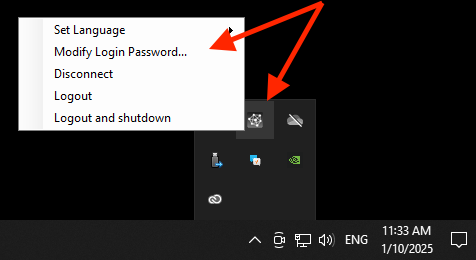
To ensure security, update your password regularly:
- In your Zero Client environment, locate the System Tray at the bottom-right corner of the screen.
- Right-click on User Tools.
- Select Modify Login Password from the menu.
- Enter your current password and set a new password.
- Save the changes and log out to test the new password.
4. Storage Privacy with Private Drive
Your Zero Client environment includes a DATA (D:) drive for secure file storage:
- Accessing Your DATA (D:) Drive:
- Locate the drive labeled DATA (D:) within File Explorer.
- Store your personal or work-related files here. This drive is designed as a Private Drive, ensuring that your data is isolated and not accessible to other users.
- Important Notes:
- While your DATA (D:) drive is private and accessible only through your user account, the host computer has the ability to view all stored files.
- Regularly back up important files to avoid data loss.
5. Important Usage Notes
- The Zero Client system relies on the host computer being powered on. Ensure the host computer is turned on before using your Zero Client device.
- For energy efficiency and system maintenance, the host computer will automatically shut down at 7:00 PM every workday. Please save all work and log out before this time to avoid data loss.